
Processing Reports
Processing Reports
Processing Reports Daily Billing Report by Customer Number Daily Receipts Report by Customer Number Daily Adjustment Report by Customer Number
Daily Penalty Report by Customer Number Daily Interest Report by Customer Number Daily Billing Report by Customer Number

The Processing option under reports serves for various purposes. There are several different reports you can run based on daily process. You can also reprint different types of bills.
To access this option, you can do the following:
1. Select the Reports option from the Menu Toolbar
2. 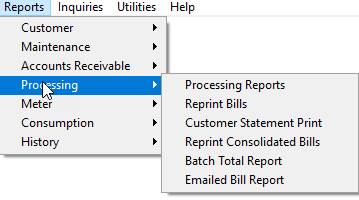
Select the Processing option from the drop-down menu
The Processing Reports option will allow you to generate various reports based upon report type and flag settings that will give your different views of the transactions that have been posted to customer’s accounts, such as billing, payments, adjustments, etc. These reports can be used to verify the AR Reconciliation report, as well as, the daily processes, such as receipts. The reports will also allow you to view or print details for a date range. For Example; if you would like to see the total amount of billings done for a given year, you will be able to enter the date range into the From and To Date fields.
To access the Processing Reports, you can do the following:
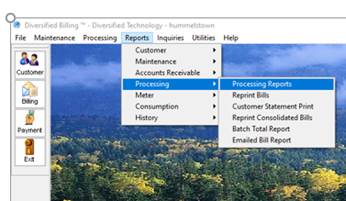
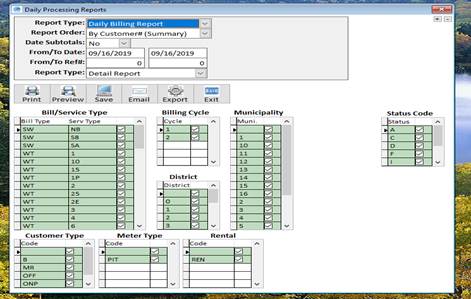
When the Daily Processing Reports window is displayed, you will be able to select various report types and set the flags in the lower portion of the report window to view specific information as it is related to the transactions posted to the customer’s accounts.
Report Type
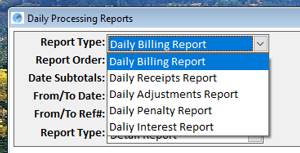
You will be able to select different reports by clicking on the down arrow after the Report Display Name. These reports can also be refined by selecting a Report Type, Customer Type, and a Date.
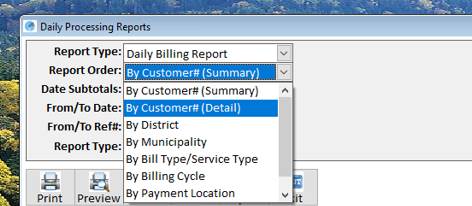
Report Order
The Report Order will allow you to select how the report will be sorted, such as by customer number in summary format or detail, by district, by municipality, etc
Date Subtotals
The Date Subtotals is a yes or no indicator to have the report subtotal the information by date.
From Date
The From Date will contain the starting date for the date range for the report.
To Date
The To Date will contain the ending date for the date range for the report.
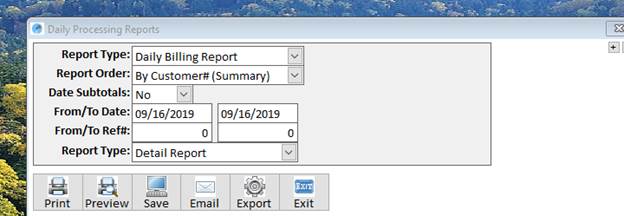
Report TypeTheReport Type will allow you to view the report in a detail format or a summary format, or both detail and summary. If the Detail & Summary is selected, the System will generate two reports, a Detail and then a Summary report.
The following reports descriptions are the basic reports with no flags changed and other options set to the default displayed.
The Daily Billing Report by Customer Number will be sorted by Customer Account and will contain basic customer information and the billing transaction amount, date, and consumption. When you select Detail & Summary Report Type, you will generate two reports: one with detail information and one with summary information.
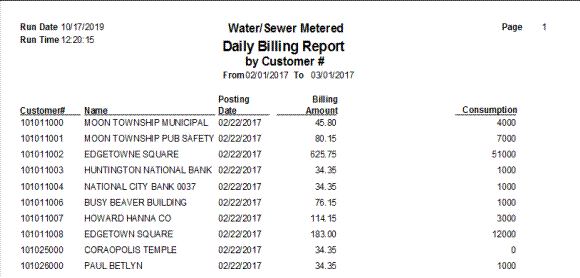
Daily Billing Report by Customer Number – Detail View
Daily Billing Summary Report
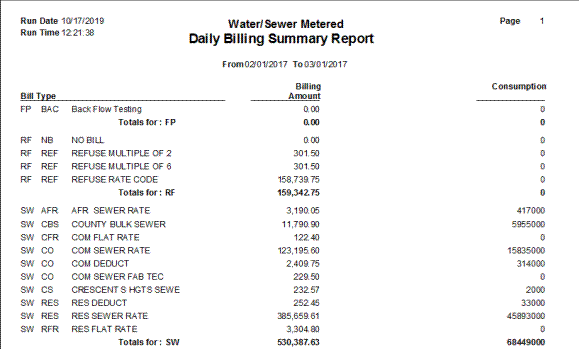
When you click on the Back icon after viewing the detail view, the System will generate and display the summary view. This view gives you the total balances and aging information by Bill/Service Type.
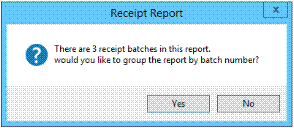
The Daily Receipts by Customer Number will display payments received as defined in the settings. If there are more than one receipts batch, you will receive the Receipt Report prompt. To view all the batches, click on the Yes button.
When you select Detail & Summary Report Type, you will generate two reports: one with detail information and one with summary information.
Daily Receipt Report by Customer Number
The Daily Receipts Report by Customer Number will display the payments that were received for the date range entered. The information will contain the customer’s information and the date of the transaction, the amount, and type, i.e. check, cash, etc.
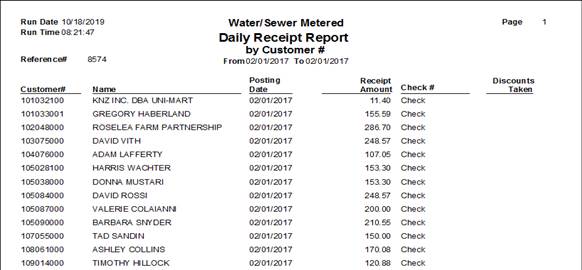
Daily Receipts Report by Customer Number – Detail
Daily Receipts Summary Report
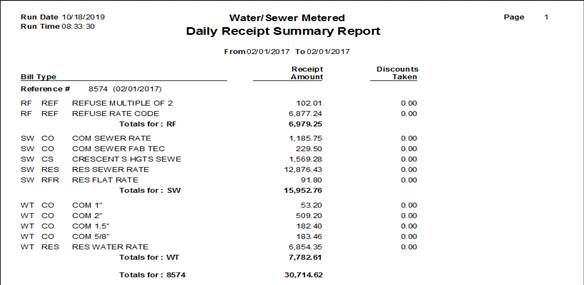
The Summary report will contain receipts information by batch reference number and sorted by Bill Type.
The Daily Adjustment Report by Customer Number will contain customer and adjustment transaction information that includes the posting date, amount and reference.
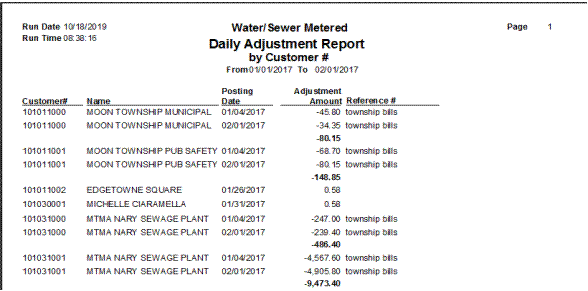
Daily Adjustment Report by Customer Number Detail
Daily Adjustment Summary Report
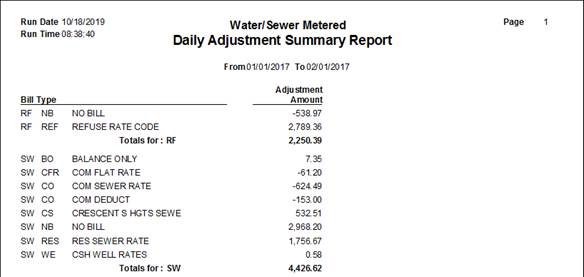
The Summary report will contain adjustment transaction information by Bill/Service Type. The information will include the service and the total amount of adjustments made.
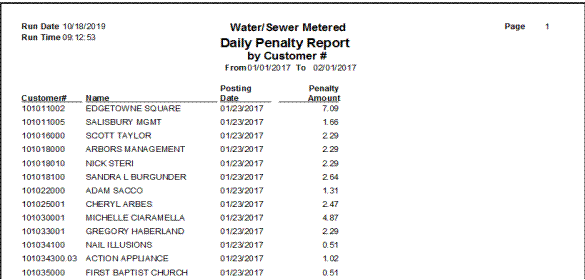
The Daily Penalty Report by Customer Number will display the customer information and the penalty transaction that posted to the account. The penalty information will include the posting date, the amount, and consumption. When you select Detail & Summary Report Type, you will generate two reports: one with detail information and one with summary information.
Daily Penalty Summary Report
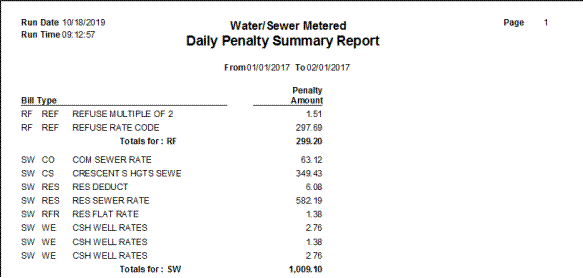
The Summary report will contain penalty transaction information sorted by Bill/Service Type. The information will include service, total penalties per service and consumption.
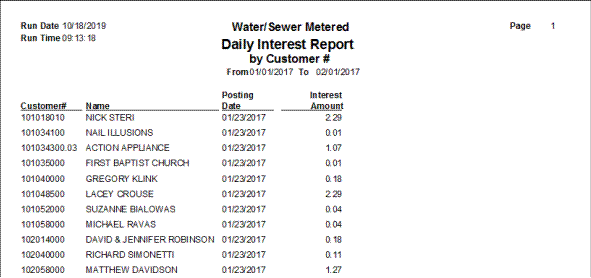
The Daily Interest Report by Customer will contain customer and interest transaction information. The interest transaction information will include the posting date, amount, and consumption.
Daily Interest Summary Report
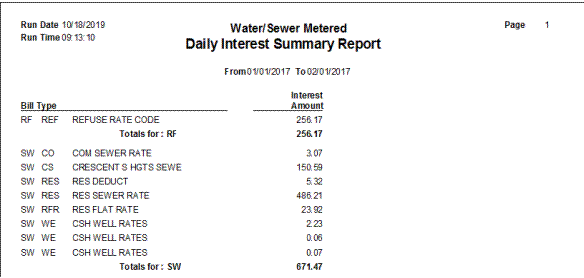
The Summary report will contain interest transactions sorted by Bill/Service Type. The information will include service, total interest per service and consumption.
The following are examples of a few of the reports with the flag’s settings changes.
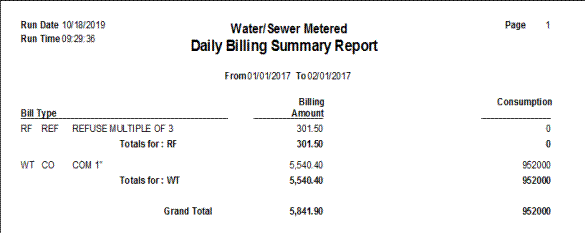
This is the Daily Billing Summary Report by Customer with the Bill/Service Type flags changed to only two services.
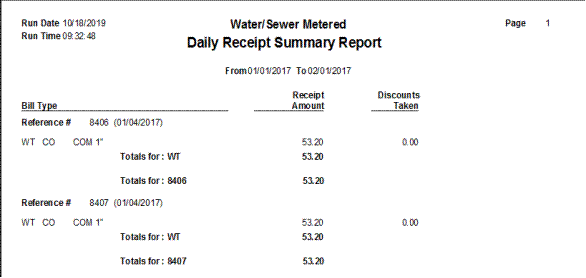
This is the Daily Receipts Summary Report with the Bill/Service flags changed to only two services.